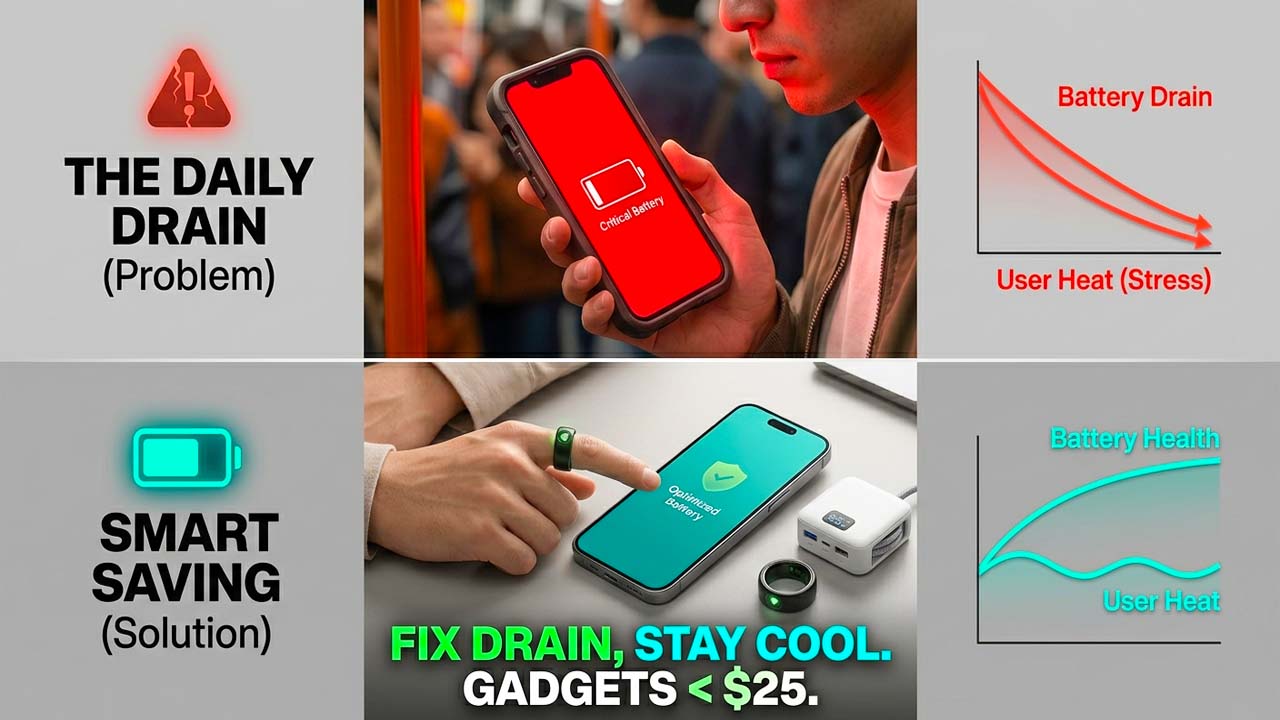
We have all been there: you are out for the day, navigating a busy schedule, or trying to capture the perfect shot, and you look down to see your battery icon flashing a stressful 15%. Modern smartphones are marvels of engineering, packing incredible processing power, ultra-bright displays, and complex AI capabilities. However, all that cutting-edge technology demands a massive amount of power.
While carrying a power bank is a decent temporary fix, the best long-term solution is to optimize your phone’s internal configurations. Many default factory settings prioritize flashy performance over energy conservation. By tweaking just a few buried settings, you can drastically reduce unnecessary background drainage.
Whether you are using a brand-new flagship or trying to breathe new life into an aging device, changing these key settings today will instantly boost your mobile battery life.
1. Tame Your Display Settings (The Biggest Power Hog)
Your smartphone screen is almost always the single largest consumer of battery power. Moving from dark, indoor rooms to bright outdoor sunlight forces your display to work overtime, but keeping a few key display settings in check can yield immediate results.
- Switch to Dark Mode Everywhere: If your phone features an OLED or AMOLED display, every black pixel is actually turned off completely, drawing zero power. Switching your system theme and popular apps (like Facebook, YouTube, and browser apps) to Dark Mode can save a significant chunk of juice over a full day compared to a bright white background.
- Cap Your Refresh Rate: Many modern smartphones boast ultra-smooth 120Hz or higher display refresh rates. While it looks fantastic when scrolling, refreshing the screen 120 times every second drains the battery fast. If your device doesn’t have an adaptive or dynamic mode that adjusts automatically, manually lowering it to the standard 60Hz will prolong your battery life noticeably.
- Lower Your Screen Timeout: Leaving your phone face-up on a desk after looking at a text message keeps the display glowing unnecessarily. Change your “Auto-Lock” or “Screen Timeout” settings to 30 seconds or 1 minute to ensure the phone goes to sleep promptly when you put it down.
2. Take Control of Background App Refresh
Just because you close an app doesn’t mean it stops working. By default, many applications constantly ping remote servers in the background to check for new messages, fetch location updates, or preload advertisements so they open half a second faster.
- Restrict Background Activity: Dive into your phone’s privacy or application settings to locate “Background App Refresh” (iOS) or “Background Data Usage” (Android). Go through the list manually and disable it for apps that don’t need real-time updates—such as mobile shopping platforms, single-player games, or travel booking apps.
- Audit Your Location Services: GPS tracking is incredibly power-intensive. Many apps demand access to your location 24/7, even when they don’t need it. Change your location permissions for non-essential apps from “Always Allow” to “While Using the App,” or turn off location access entirely for apps that have no business tracking you.
3. Trim the Wireless Fat
Your device is constantly searching for connection signals, which can cause significant battery depletion—especially in areas with spotty cellular coverage.
- Turn Off Mobile Data When on Wi-Fi: When you are at home or at the office, your phone is securely connected to a local Wi-Fi network. However, the cellular radio often keeps running in the background to ensure a seamless handoff. For an extra boost, you can toggle mobile data off when you know you will be stationary for hours.
- Disable Automatic Wi-Fi and Bluetooth Scanning: Even if you turn off Wi-Fi or Bluetooth from your quick-settings panel, many operating systems keep a low-power scanning feature active to assist with location accuracy and nearby device discovery. Look for “Wi-Fi Scanning” and “Bluetooth Scanning” within your location or connectivity settings and flip them off.
4. Optimize Connectivity and Push Notifications
Every time your phone buzzes, lights up, or plays a sound, it chips away at your daily battery reservoir.
- Switch from Push to Fetch for Email: If you receive dozens of non-urgent emails a day, your mail app is constantly awake. Changing your account settings from “Push” (which forces emails to your phone instantly) to “Fetch” (which checks for updates every 15 or 30 minutes) gives your processor a chance to stay in a deep sleep state.
- Disable Vitals-Free Notifications: Go to your notification settings and brutally turn off alerts for social media likes, game reminders, and shopping promos. Fewer notifications mean your screen stays off more often, saving valuable power.
5. Utilize Built-in Battery Optimization Tools
Both Android and iOS feature highly sophisticated built-in battery saver profiles that automate many of these tasks for you.
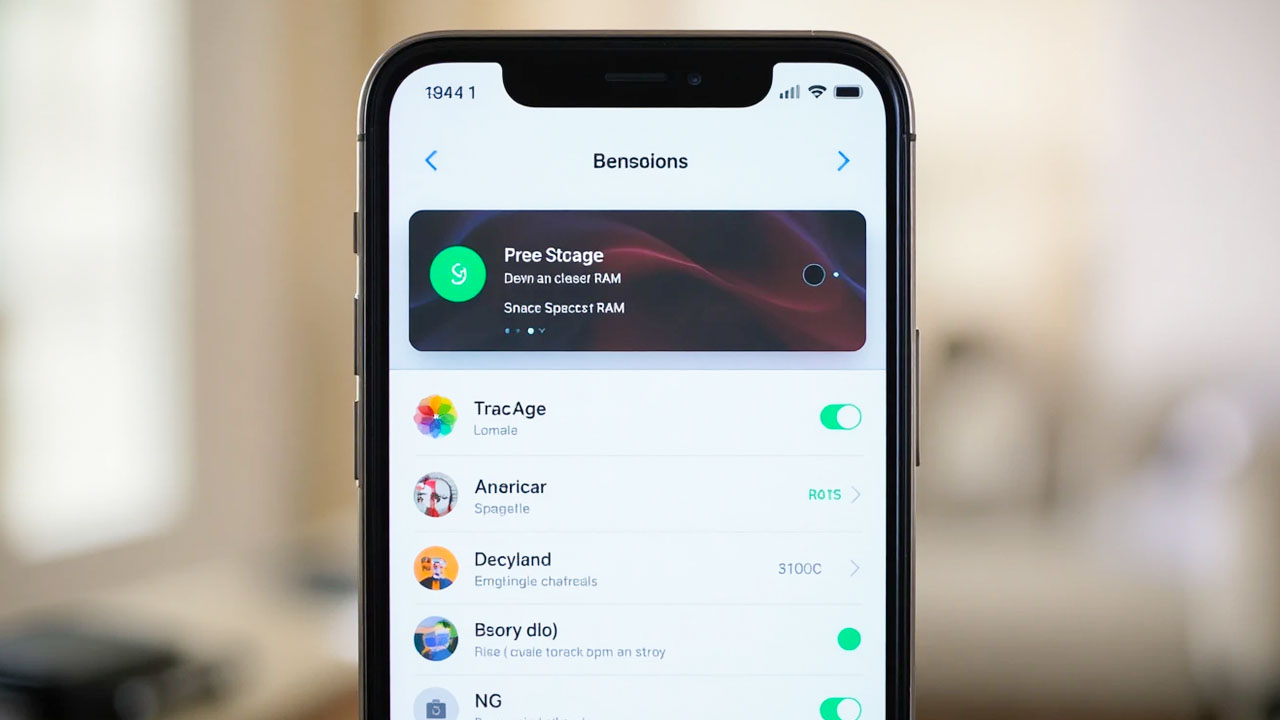
- Enable Adaptive Battery/Power Saving Mode: Don’t wait until your phone hits 20% to turn on power-saving features. If you know you have a long day ahead, flip on your device’s basic battery-saver mode early in the morning. It will gently throttle peak CPU performance and limit background processes without impacting your ability to make calls, text, or browse the web normally.
Summary Checklist of Settings to Change
| Setting | Action to Take | Expected Benefit |
| Theme | Switch from Light to Dark Mode | High (OLED screens only) |
| Refresh Rate | Drop from 120Hz to 60Hz | Medium to High |
| Location Services | Change to “While Using App” | High |
| Background Refresh | Turn Off for non-essential apps | Medium |
| Screen Timeout | Reduce to 30 seconds | Medium |
By taking ten minutes to audit these settings today, you can successfully break free from the constant anxiety of a dying phone. Your smartphone will run cooler, perform more efficiently, and—most importantly—easily make it to bedtime without needing an emergency pit stop at a wall outlet.