This is the good way to Clear Other Storage on Your Phone, Few things are as frustrating as getting a “Storage Almost Full” warning when you try to take a photo, download a new app, or install an essential system update. You dive into your phone’s storage settings to clean house, expecting to delete a few large videos or unused apps. Instead, you are greeted by a massive, mysterious gray block labeled “Other” (on iPhone) or “System/Trash” (on Android).
Often, this vague category swallows up anywhere from 10GB to over 50GB of your precious drive space. Even worse, clicking on it rarely gives you a direct “Delete” button.
So, what exactly is this digital hoarding zone, and how do you reclaim your space? Below is a comprehensive, step-by-step guide to clearing out the “Other” storage partition and instantly freeing up gigabytes on your mobile device.
What Exactly is “Other” Storage?
Before you start deleting files, it helps to understand what your phone is hiding in this category. “Other” is a catch-all bucket for files that do not neatly fit into standard classifications like Apps, Photos, Media, or Documents. It primarily consists of:
- System Caches: Temporary files created by your operating system and apps so they load faster.
- Streaming Cache: Cached music, movies, and podcasts from apps like Spotify, YouTube, and Netflix.
- Web Browsing Data: Saved history, cookies, and image preloads from Safari, Chrome, or Samsung Internet.
- Message Attachments: Photos, videos, and audio clips sent to you via iMessage, WhatsApp, or Telegram.
While caching is designed to make your phone run smoother, these files frequently get bloated or corrupted over time, refusing to delete themselves automatically.
Step 1: Purge Your Web Browser Cache
Every website you visit leaves behind digital footprints to ensure it loads quickly the next time you open it. Over months of browsing, these temporary files snowball into gigabytes of data nested directly inside the “Other” storage bracket.
- For iPhone (Safari): Open Settings, scroll down to Safari, and tap Clear History and Website Data.
- For Android & iOS (Google Chrome): Open Chrome, tap the three dots in the corner, go to History > Clear Browsing Data. Ensure “Cached images and files” is checked, select “All time” as the time range, and tap Clear Data.
Step 2: Clear Cached Data from Streaming and Social Apps
Media-heavy apps are the biggest secret contributors to “Other” storage. When you stream a song on Spotify, watch a TikTok video, or scroll through Instagram, the app temporarily downloads that media to your phone’s local storage so your playback doesn’t buffer.
- The Android Solution (App Cache Clean): Android makes it incredibly easy to wipe this out. Go to Settings > Apps, select a media-heavy app (like TikTok, YouTube, or Facebook), tap Storage, and hit Clear Cache. Note: Do not tap “Clear Data” unless you want to log out of the app and reset its settings.
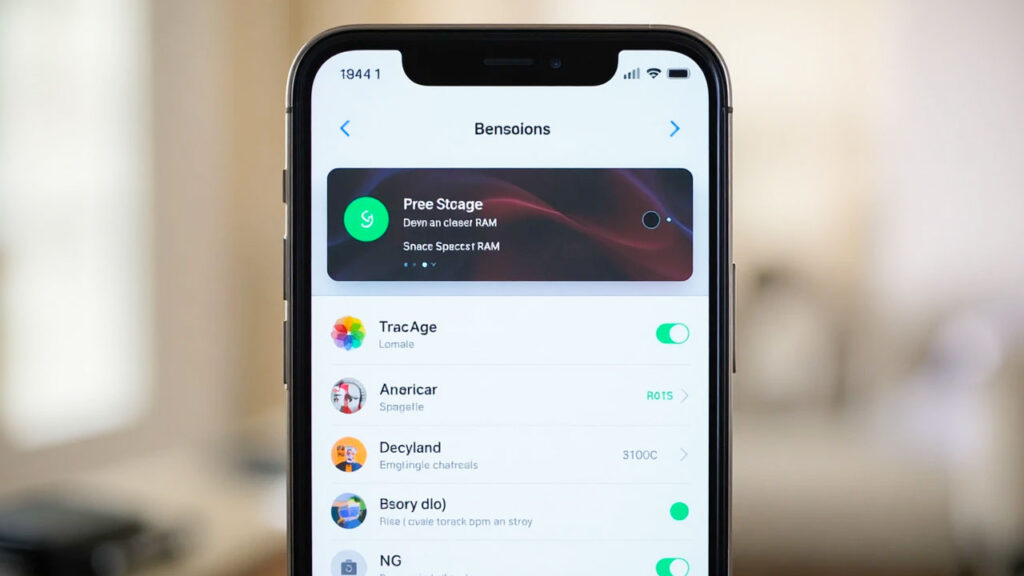
- The iPhone Solution (Offload or Reinstall): iOS doesn’t have a universal “Clear Cache” button for apps. To get around this, go to Settings > General > iPhone Storage. Tap on a bloated social or streaming app. You can choose to Offload App (which keeps your login documents but deletes the core app temporary storage) or completely delete and reinstall the app to completely reset its footprint to zero.
Step 3: Tackle Heavy Chat App Attachments
If you use WhatsApp, Telegram, or iMessage daily, your “Other” storage is likely packed with thousands of forgotten memes, videos, and voice notes. Even if you view them once, they remain embedded in your app’s local storage directory.
- For WhatsApp: Open WhatsApp and go to Settings > Storage and Data > Manage Storage. Here, you will see a breakdown of your largest chats and files over 5MB. You can review and delete videos and photos in bulk.
- For iMessage (iPhone): Go to Settings > General > iPhone Storage > Messages. Tap on Videos or Large Attachments to see exactly what is eating your space and slide to delete them. You can also change your message history setting from “Keep Forever” to “30 Days” or “1 Year” to automate this cleanup.
Step 4: Delete Offline Media Downloads
Sometimes we download content for a flight or a road trip and completely forget about it. These downloads live inside your apps but are cataloged under system data and “Other” storage.
- Open apps like Netflix, Spotify, YouTube Premium, or Disney+.
- Navigate to their respective “Downloads” or “Library” sections.
- Delete downloaded movies, TV episodes, or high-fidelity playlists that you have already consumed or no longer need offline.
Step 5: The Ultimate Fix (Backup and Factory Reset)
If you have tried all the steps above and your “Other” storage still refuses to budge, it means your operating system has accumulated deeply embedded system logs, diagnostic files, and corrupted sync data that cannot be cleared manually. The only way to completely flush this out is a fresh start.
- Back-Up Your Device: Ensure your phone is fully backed up to iCloud (for iPhone) or Google Drive / Samsung Cloud (for Android). Double-check that your photos, contacts, and app data are secure.
- Factory Reset: Go to your system settings and select Erase All Content and Settings (Factory Reset).
- Restore Your Data: Once the reset is complete, turn on the phone and restore your data from your recent backup.
This process completely reformats the storage partition, wiping out the corrupted “Other” data blocks while cleanly reinstalling your personal files and applications.
Summary Checklist to Free Up Storage
| Action Item | Target Target | Frequency Recommendation |
| Clear Browser History | Safari / Chrome Cache | Once a month |
| Wipe Social Media Caches | TikTok, Facebook, Instagram | Every 2–3 months |
| Audit Chat Media | WhatsApp / iMessage Attachments | Twice a year |
| Remove Offline Video | Netflix / YouTube Downloads | Immediately after watching |
| Full Backup & Reset | Corrupted Operating System Logs | Once a year (Last resort) |
By taking just a few minutes to audit these hidden paths on your smartphone, you can clear out the clutter, eliminate the “Other” storage bottleneck, and give your phone plenty of room to breathe without having to delete your favorite photos or memories.