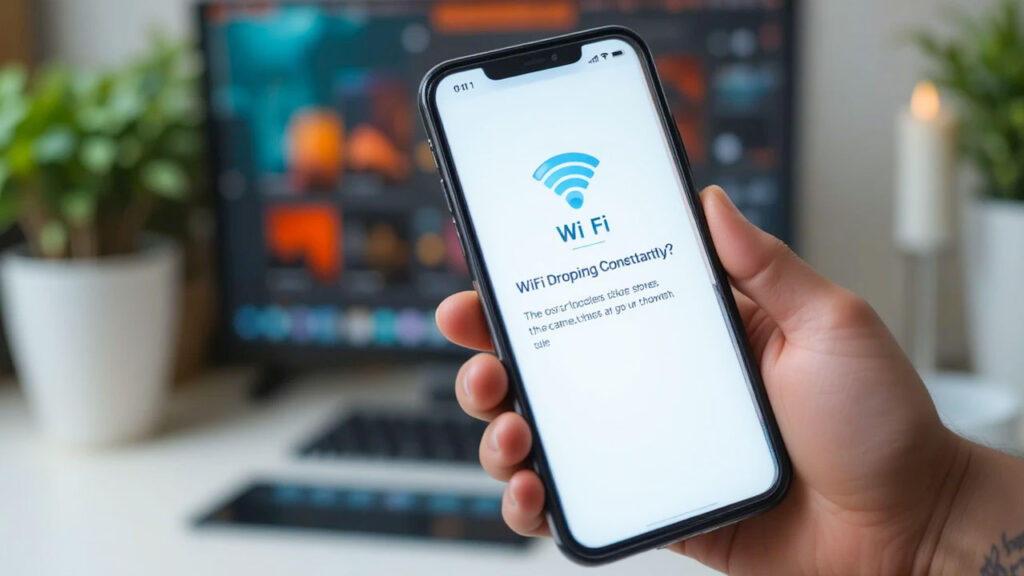
There are few modern disruptions more irritating than a Wi-Fi connection that constantly drops. Whether you are in the middle of an important video conference, streaming your favorite show, or trying to load a webpage, seeing that internet icon suddenly disconnect can instantly derail your day.
When your Wi-Fi keeps cutting out, it is easy to assume that your internet service provider (ISP) is at fault or that you need a brand-new router. However, most wireless stability issues are actually caused by local factors like signal interference, outdated device software, or poor router placement.
Before you spend hours on hold with tech support, try these five quick, step-by-step fixes to stabilize your wireless connection and banish random drops for good.
1. Give Your Router a Strategic Relocation
Wireless signals are essentially radio waves, which means they can be easily blocked or weakened by physical obstacles. If your router is hidden away in a closet, tucked behind a desktop computer, or sitting on the floor in the basement, your devices will struggle to maintain a stable grip on the signal.
- Move It to a Central Location: Place your router in the central area of your home or workspace. The closer it is to the center of your daily activities, the fewer walls the signal has to penetrate.
- Elevate the Router: Radio waves travel best downward and outward. Placing your router on a high shelf, a mantle, or a desk gives it a much better line of sight to your smartphones, laptops, and smart TVs.
- Avoid Large Metal Objects and Appliances: Keep your router away from massive metal surfaces, filing cabinets, brick walls, and major household appliances (like microwaves and refrigerators), which are notorious for absorbing or disrupting wireless signals.
2. Switch from the 2.4 GHz to the 5 GHz Frequency Band
Most modern routers are “dual-band,” meaning they broadcast two separate Wi-Fi networks: one on the 2.4 GHz frequency and one on the 5 GHz frequency. If you are experiencing frequent drops, you might simply be connected to the wrong band.
- The 2.4 GHz Problem: This band travels further and passes through walls easily, but it is incredibly crowded. Baby monitors, Bluetooth speakers, garage door openers, and your neighbors’ routers all fight for space here. This congestion causes your devices to drop connection when interference spikes.
- The 5 GHz Solution: The 5 GHz band is much faster and offers a vastly cleaner connection with significantly less interference. While its physical range is slightly shorter than 2.4 GHz, switching your laptop, gaming console, or smartphone to the 5 GHz band can immediately eliminate random disconnections.
- Tip: If your router merges both bands under a single Wi-Fi name, log into your router settings to split them into two distinct names (e.g., “HomeNetwork” and “HomeNetwork_5G”) so you can manually force your high-priority devices onto the more stable 5 GHz line.
3. Change Your Wi-Fi Channel
If you live in an apartment complex or a crowded neighborhood, your router is likely competing with dozens of surrounding networks. If your router is broadcasting on the exact same wireless channel as your neighbor’s router, the overlapping signals will clash, forcing your devices to intermittently drop offline.
- How to Fix It: Access your router’s admin portal via your web browser (the login address is usually printed on a sticker on the back of the device). Look for the Wireless Settings menu and locate the Channel option.
- By default, this is set to “Auto,” which doesn’t always choose the clearest option. If you are using the 2.4 GHz band, manually switch your channel to 1, 6, or 11—these are the only three channels that do not overlap with one another. For the 5 GHz band, picking any open channel usually clears up cross-network interference instantly.
4. Update Your Network Drivers and Router Firmware
Just like your phone apps or computer operating system, the software running your networking hardware requires regular updates to fix bugs, patch security holes, and improve connection stability.
- Update Computer Drivers: If the Wi-Fi is dropping on your laptop but works perfectly on your phone, your computer’s wireless network card driver might be corrupted or outdated. On Windows, search for Device Manager, expand Network Adapters, right-click your wireless card, and select Update Driver. On a Mac, simply ensure your macOS is fully up to date.
- Update Router Firmware: Go to your router’s admin dashboard and check the Advanced or System Tools tab for a section called Firmware Update. Many modern routers have a simple “Check for Updates” button that automates the process. Keeping this updated ensures the router can handle modern device connections without crashing.
5. Forget the Network and Reset Network Settings
Sometimes, devices accumulate corrupted network configuration logs after interacting with multiple Wi-Fi access points. This digital confusion can cause a device to repeatedly loop through a cycle of connecting, dropping, and reconnecting.
- Forget the Wi-Fi Network: On your glitching device, open your Wi-Fi settings, select your network name, and tap Forget Network. Turn your Wi-Fi off for 10 seconds, turn it back on, select your network, and re-enter your password from scratch.
- Reset Network Settings (The Clean Slate): If forgetting the network fails, you can perform a broader reset. On a smartphone or tablet, go to Settings > General Management (or System) > Reset and select Reset Network Settings. Warning: This will clear out all saved Wi-Fi passwords and paired Bluetooth devices, but it acts as an effective hard reset for hidden software bugs.
Summary Checklist for a Stable Connection
| Troubleshooting Step | Main Target Area | Expected Result |
| Elevate & Center Router | Physical Environment | Eliminates dead zones and signal blocks |
| Connect to 5 GHz Band | Signal Interference | Bypasses household appliance interference |
| Switch to Channel 1, 6, or 11 | Neighboring Networks | Stops overlapping signal collisions |
| Update Network Drivers | Device Software | Fixes hardware communication bugs |
| Forget & Reconnect Network | Saved Settings Cache | Clears out corrupted configuration data |
By working through this quick checklist, you can systematically eliminate the environmental and digital hurdles that break your connection. In most cases, these minor adjustments will result in a robust, reliable Wi-Fi signal, saving you from unnecessary hardware expenses or grueling customer service calls.