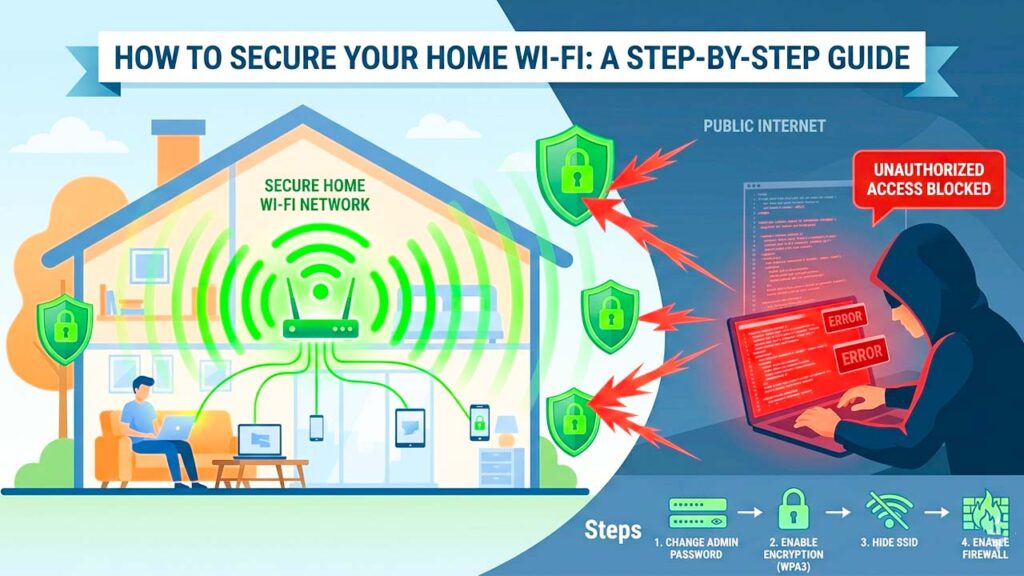
Think of your home Wi-Fi network as the digital front door to your private life. Every device you own—your smartphone, laptop, smart TV, home security cameras, and even your smart appliances—connects through this single gateway. If a hacker gains access to your wireless network, they don’t just steal your internet bandwidth; they can potentially intercept your personal data, access your private files, monitor your online activity, or even hijack your smart devices.
Most people plug in their internet router, set up a basic password, and never think about security again. Unfortunately, out-of-the-box factory settings are notoriously easy for malicious actors to exploit. Protecting your home network doesn’t require an IT degree. By following this comprehensive, step-by-step guide, you can lock down your wireless network and keep digital intruders out.
Step 1: Change the Default Router Admin Credentials
The absolute first line of defense is changing the username and password used to log into your router’s settings portal.
When a router is manufactured, it comes with a default administrator login (often something incredibly predictable like username: admin and password: admin or password). Hackers keep massive databases of these factory defaults. If someone is parked outside your house or targets your network remotely, they can access your router’s dashboard in seconds if these haven’t been changed.
- How to fix it: Find your router’s IP address (usually printed on a sticker on the back of the device, such as
192.168.0.1or192.168.1.1). Type this into a web browser address bar to access the login page. Locate the System Tools or Administration settings, and change the default password to a strong, unique passphrase that combines uppercase letters, numbers, and symbols.
Step 2: Update Your Wi-Fi Network Name (SSID)
Your network name, or SSID (Service Set Identifier), is what you see when searching for a wireless connection on your phone or laptop. Leaving your SSID as the factory default (e.g., NETGEAR_5G or Linksys_12345) tells hackers exactly what brand and model of router you are using. This gives them a massive head start because they instantly know which known software vulnerabilities to exploit.
- How to fix it: Inside your router’s wireless settings, change the SSID to something generic that doesn’t contain personal identifiers. Avoid using your last name, street address, or apartment number. Instead, choose a neutral name like “TheMatrix” or “BlueSky Network” that won’t give away your identity or hardware brand.
Step 3: Upgrade to Strong Wi-Fi Encryption (WPA3 or WPA2)
Encryption scrambles the data traveling through the air between your devices and your router, ensuring that anyone trying to spy on your connection sees nothing but unreadable gibberish. However, older encryption standards have major security flaws.
- WPA or WEP: If your router is still using WEP or the original WPA protocol, change it immediately. These outdated protocols can be cracked in minutes using free software readily available online.
- WPA2-AES: This is the secure baseline for modern home networks. It uses advanced encryption that remains highly secure against brute-force attacks.
- WPA3: This is the gold standard for wireless security. If you bought your router recently, ensure WPA3 is enabled. It provides personalized data encryption for each device on the network and makes it significantly harder for hackers to guess your password.
Step 4: Turn Off WPS (Wi-Fi Protected Setup)
Wi-Fi Protected Setup (WPS) is a feature designed to make connecting new devices easier. It usually involves pressing a physical button on the back of your router or entering an 8-digit numerical PIN to bypass the main Wi-Fi password.
While convenient, the WPS PIN architecture is highly vulnerable to brute-force hacking attacks. A basic hacking script can cycle through PIN combinations continuously until it breaks into your network, rendering even a complex 20-character Wi-Fi password entirely useless.
- How to fix it: Navigate to the wireless or security tab in your router configuration panel, locate WPS, and toggle it to Disabled. Moving forward, connect new devices by manually typing in your main Wi-Fi password.
Step 5: Create a Separate Guest Network for IoT Devices
The rise of the “Internet of Things” (IoT)—smart fridges, robot vacuums, smart bulbs, and streaming sticks—has created a massive security blind spot. These devices are rarely built with robust security protocols, and manufacturers seldom update their software. If a hacker breaches a cheap smart lightbulb on your primary network, they can use it as a bridge to hop over to your laptop or phone.
- How to fix it: Most modern routers feature a Guest Network option. Enable this feature and give it a separate password. Keep your personal computers, smartphones, and hard drives on your main network, and relegate all smart home appliances, smart TVs, and visiting guests to the guest network. If an IoT device gets compromised, your core personal data remains isolated and safe.
Step 6: Keep Your Router Firmware Updated
Your router is essentially a miniature computer running its own operating system, known as firmware. Security researchers constantly discover new security holes in router code, and manufacturers release firmware updates to patch these flaws. If you don’t update your router, you leave the digital windows of your home wide open.
- How to fix it: Check your router’s admin settings panel for a section labeled Firmware Update or Advanced System Management. Many newer routers offer an “Auto-Update” checkbox—enable this if it’s available. If your router requires manual updates, check the manufacturer’s official website twice a year to download and install the latest firmware file.
Summary Security Checklist
| Security Action | Protection Benefit | Priority Level |
| Change Admin Password | Stops unauthorized configuration access | Critical |
| Enable WPA2 / WPA3 | Scrambles wireless traffic from eavesdroppers | Critical |
| Disable WPS | Closes a major automated hacking loophole | High |
| Isolate IoT on Guest Network | Protects computers if smart home tech is hacked | High |
| Enable Firmware Auto-Updates | Patches discovered hardware vulnerabilities | Medium |
Taking twenty minutes to log into your router and implement these changes drastically raises the barrier to entry for hackers. Most digital intruders look for low-hanging fruit; by hardening your home Wi-Fi network, you transform your home from an easy target into a digital fortress.